Tuning Browser
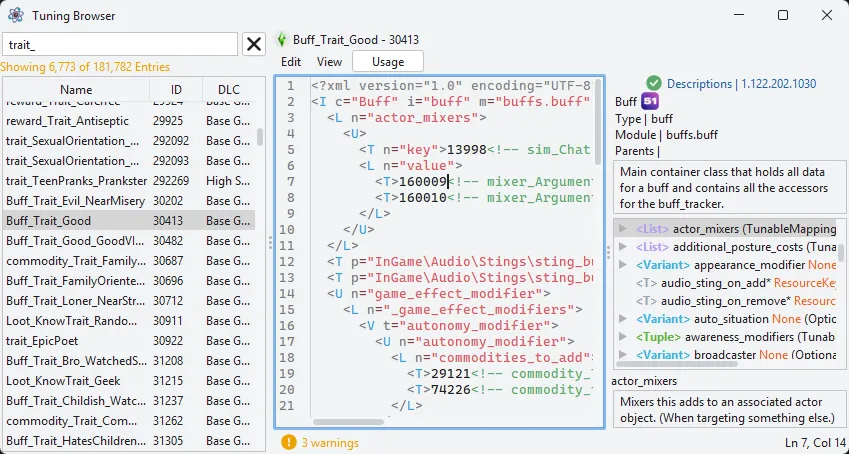
Sims 4 Editor can automatically extract the game’s tuning XML files, and indexes them to make them easily browseable.
Tuning Browser
Section titled “Tuning Browser”Browse the game’s tuning files along side their tuning descriptions. Search and sort by name, ID, and DLC. The Lot51 button opens a tuning in lot51.tdesc.
Usage & Uses
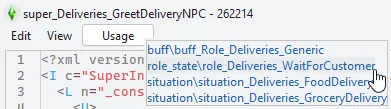
Section titled “Usage & Uses”When viewing a tuning file, you can click the Usage button to see a list of other files that reference the current one.
When another tuning ID is referenced in XML, you can CTRL + Left Click on the tuning ID to jump to that tuning.

In this example, ctrl clicking on 203568 would jump to the smart_Hub_Socials_Wake_Command file.
TDesc Browser
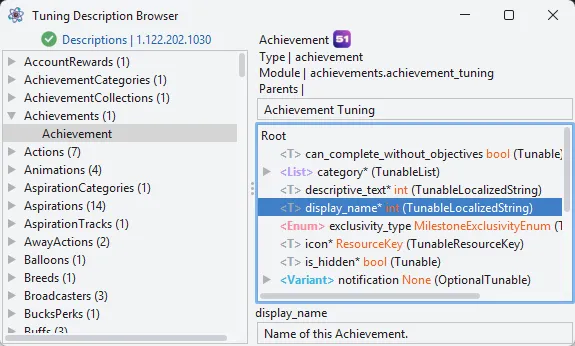
Section titled “TDesc Browser”You can also browse the tdesc files directly using the Tuning Description Browser.
Description Manager
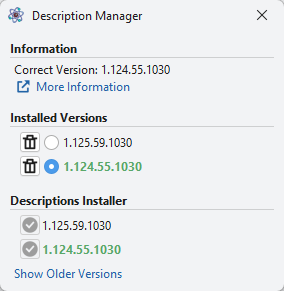
Section titled “Description Manager”S4E handles installing, deleting, and swapping between different tdesc versions.
String Table Browser
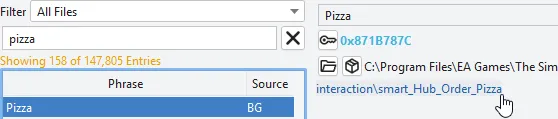
Section titled “String Table Browser”This window allows you to view every single table entry in the game. Entires show their usage in tuning files, which can be clicked to open them in the Tuning Browser.